# add code hereAE 09: Data Imports & Exports
Packages
We will use the following two packages in this application exercise.
- tidyverse: For data import, wrangling, and visualization.
- readxl: For importing data from Excel.
Part 1: Hollywood Relationships
Data
The data for this application exercise is from Data is Plural and it is on age gaps in Hollywood relationships.
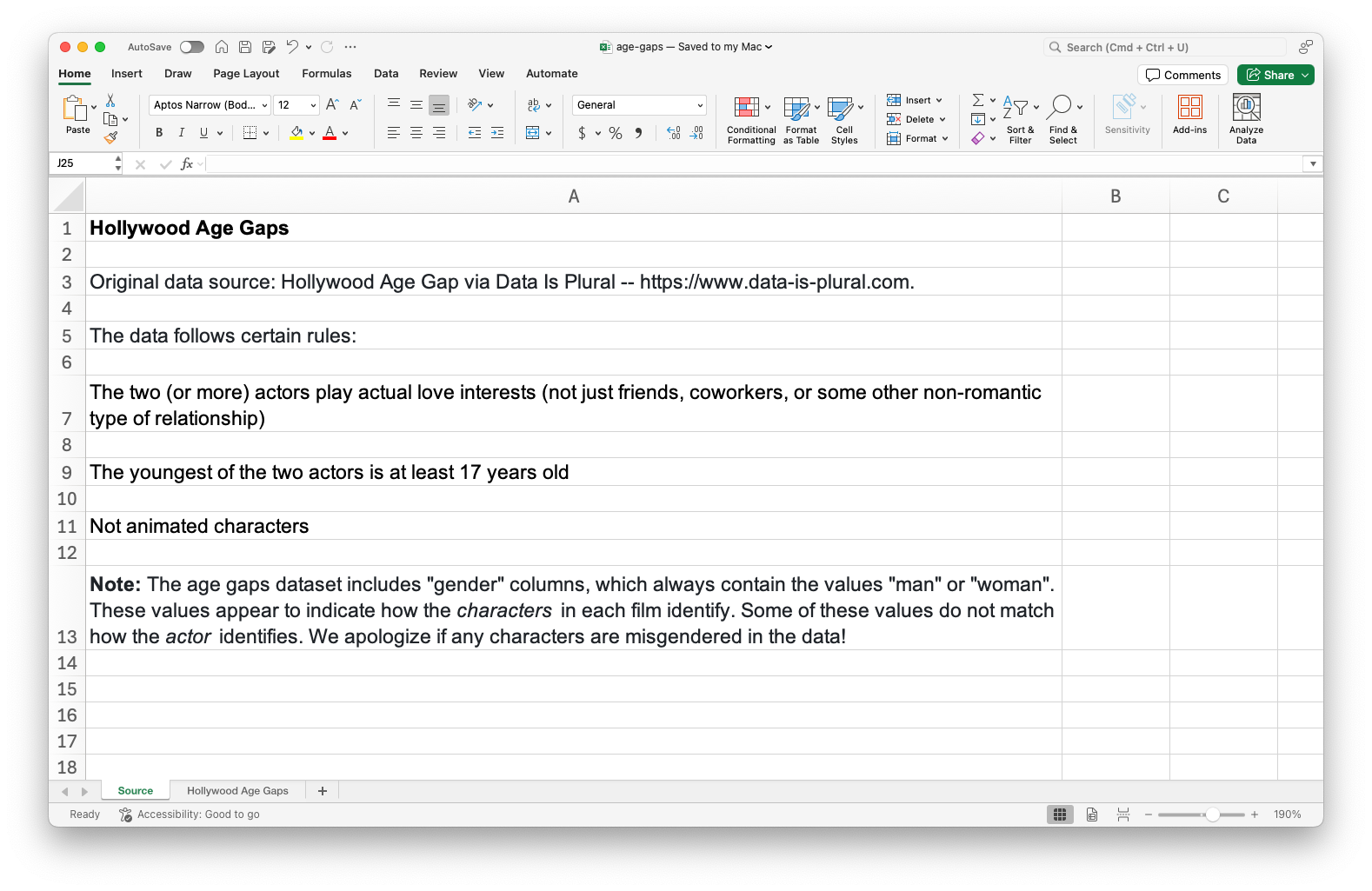
The data follows certain rules:
- The two (or more) actors play actual love interests (not just friends, coworkers, or some other non-romantic type of relationship).
- The youngest of the two actors is at least 17 years old.
- Not animated characters.
The age gaps dataset includes “gender” columns, which always contain the values “man” or “woman”. These values appear to indicate how the characters in each film identify. Some of these values do not match how the actor identifies.
The data are in an Excel file called age-gaps.xlsx in your data folder.
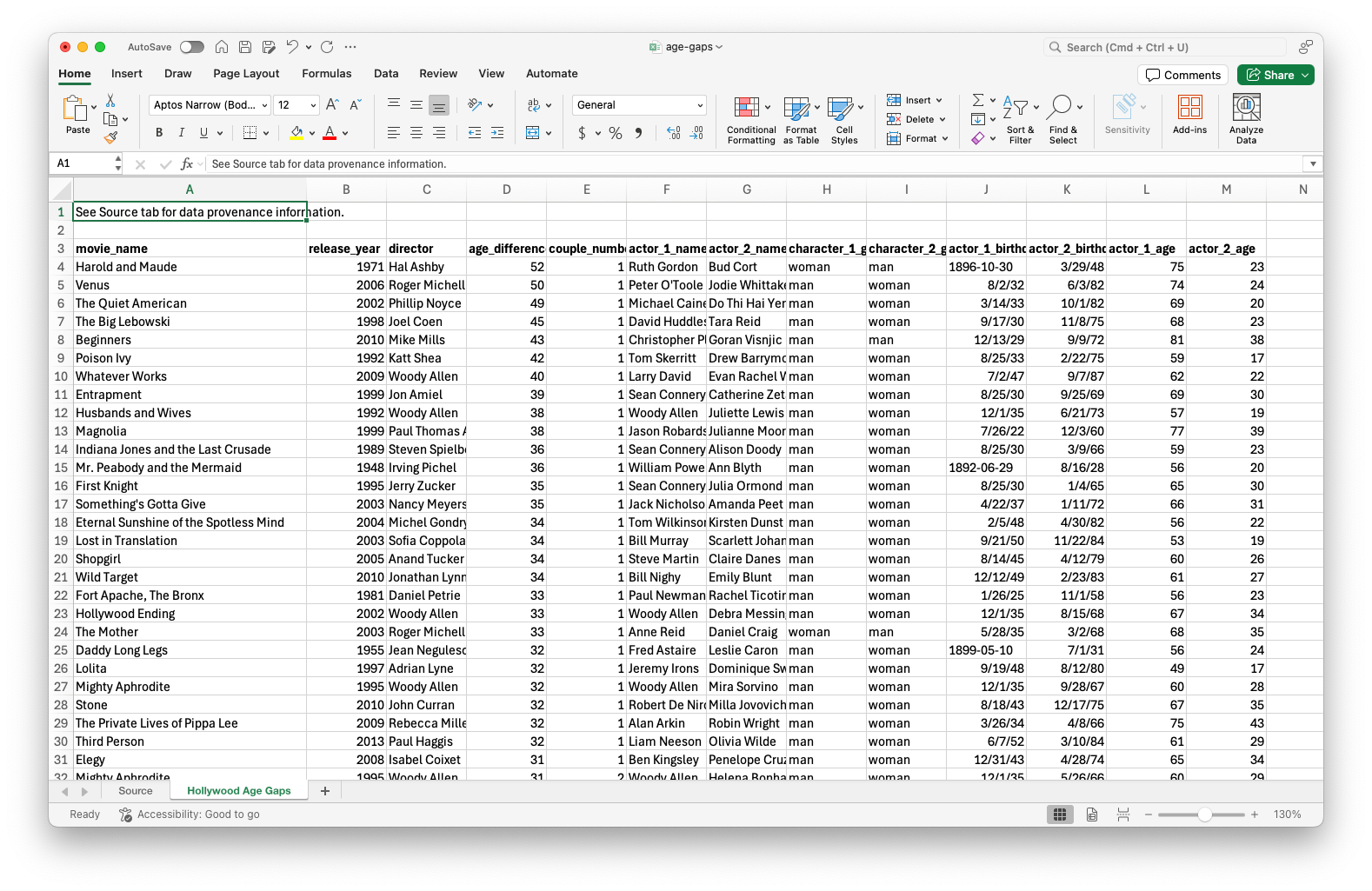
This is how the Excel file looks – it has two sheets, one with the data (called Hollywood Age Gaps) and one with information about the data (called Source). Additionally, the data sheet has some metadata at the top, above the column headers.
Import
Load the data from age-gaps.xlsx in your data and assign it to age_gaps. Confirm that this new object appears in your Environment tab. Click on the name of the object in your Environment tab to pop open the data in the data viewer.
# add code hereSubset
Create a subset of the data frame for heterosexual relationships on screen & save the resulting data as a new data frame.
# add code hereSplit the data for heterosexual relationships into three – where woman is older, where man is older, where they are the same age. Save these subsets as two appropriately named data frames. Remember: Use concise and evocative names. Confirm that these new objects appear in your Environment tab and that the sum of the number of observations in the two new data frames add to the number of observations in the original data frame.
# add code hereExport
Write out the three new datasets you created into the data, and within that, into a subfolder called age-gaps-subsets, as CSV files.
write_csv(woman_older, file = "data/age-gaps-subsets/woman-older.csv")Error in `write_csv()`:
! could not find function "write_csv"# add more code herePart 2: Sales Data
Sales data are stored in an Excel file that looks like the following:

Task 1: Read in the Excel file called sales.xlsx from the data folder such that it looks like the following.

# add code hereTask 2: Manipulate the sales data such such that it looks like the following.

# add code hereWhy should we bother with writing code for reading the data in by skipping columns and assigning variable names as well as cleaning it up in multiple steps instead of opening the Excel file and editing the data in there to prepare it for a clean import?
Add response here.